TL;DR
I created a Claude Code plugin called Vivoid Shopify Manager that connects to your Shopify store via MCP. You talk to Claude naturally and it manages your catalog — with built-in safety gates so nothing gets deleted or published by accident. It's open source and free to use.
If you run a Shopify store, you know the pain. Updating product descriptions one by one. Bulk tagging hundreds of products. Publishing new arrivals and forgetting to check the price first. It's slow, repetitive, and honestly — it shouldn't require a human anymore.
So I built something to fix it.
What I Built
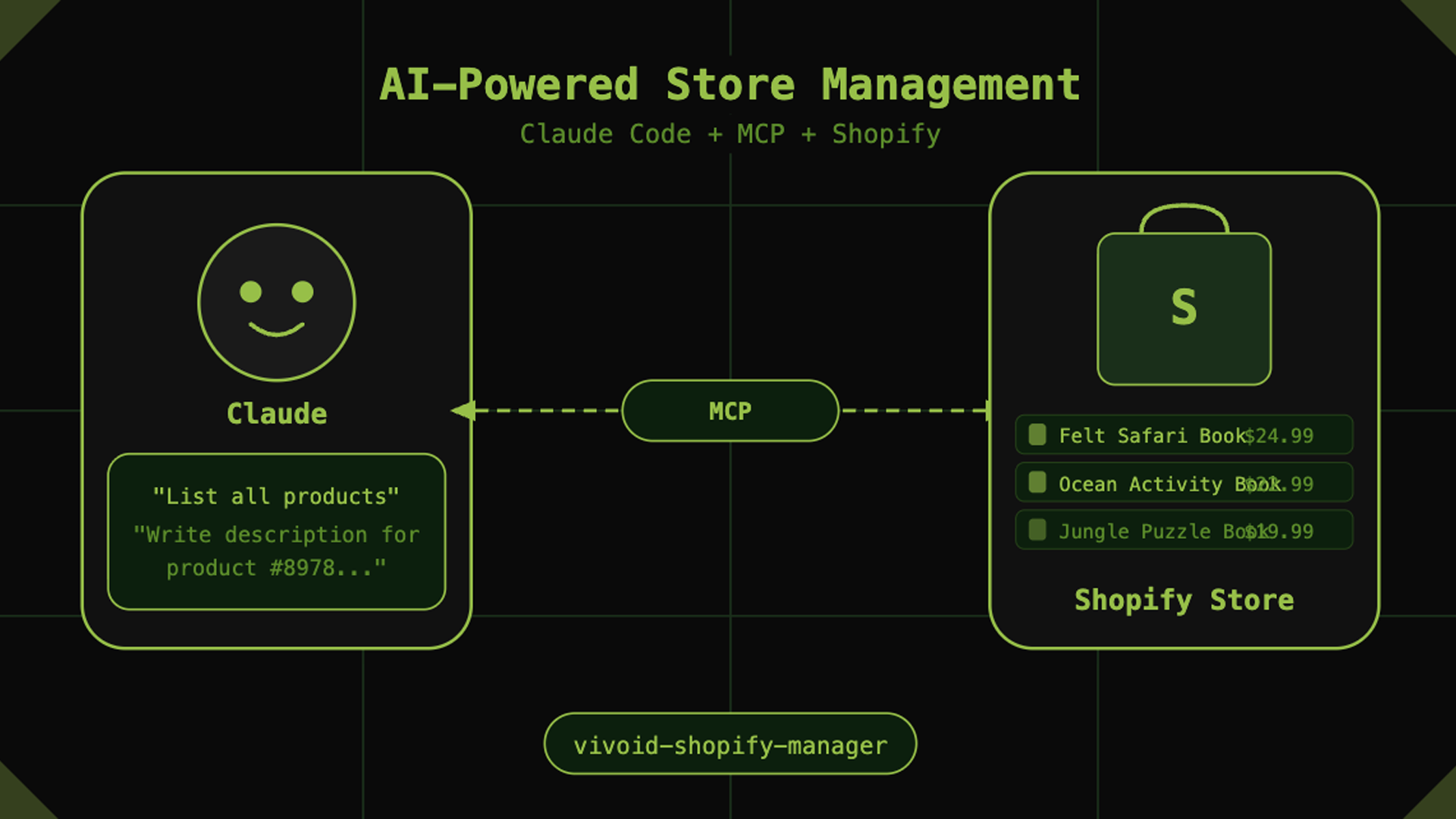
Vivoid Shopify Manager is an open-source Claude Code plugin that connects directly to your Shopify store using the Model Context Protocol (MCP). Instead of clicking through the Shopify admin, you just tell Claude what you want in plain English.
But before we get into Shopify — let me show you how the plugin system itself works.
How Claude Code Plugins Work
Claude Code has a built-in plugin marketplace. You can see it by typing:
/manage-plugins
This opens a panel showing all installed plugins and marketplaces. From here you can install, enable, disable, or remove any plugin with one click.
To install the Vivoid Shopify Manager:
/plugin marketplace add Mr-Ahtserhs/shopify-mcp-ai-manager
/plugin install shopify-manager
That's it. Claude Code pulls the plugin directly from GitHub, loads the agent definition, and activates all the skills automatically. No npm install, no config files, no setup wizard.
Once installed you'll see it appear in /manage-plugins like this:
INSTALLED
● shopify-manager@shopify-mcp-ai-manager  ●  🗑
The green dot means it's active. Toggle it off anytime you don't need it. Delete it completely with the trash icon.
This is what makes Claude Code plugins powerful — they're shareable, version-controlled, and installable in seconds from any GitHub repo.
What is MCP?
MCP stands for Model Context Protocol. Think of it as a bridge that lets AI assistants like Claude connect to external tools and APIs — not just chat, but actually do things.
In this case, the MCP server connects Claude to your Shopify store's Admin API. Claude can read your products, write descriptions, update tags, manage collections, and more — all through conversation.
No code required on your end.
What Claude Can Actually Do With Your Store
Once connected, Claude isn't just reading your store data — it can take action across your entire Shopify backend:
Catalog Management
- List all products, filter by tag, collection, or status
- Create new products with variants, pricing, and inventory
- Bulk update tags, product types, or metafields
- Move products between collections
Product Copywriting
- Write cinematic, conversion-focused descriptions in clean HTML
- Match your brand voice automatically from your store context
- Rewrite existing descriptions in bulk
- Never uses clichés like "high-quality" or "premium"
Publishing & Pricing
- Set products from draft to active with a built-in price check
- Publish to specific sales channels
- Set compare-at prices for sale items
Theme Customization
Give Claude access to your theme files and it can:
- Edit Liquid templates directly
- Customize section layouts
- Add or modify CSS and JavaScript
- Build custom features like bundle builders, progress bars, or personalization flows
This is particularly powerful for developers. Instead of writing Liquid code by hand, you describe what you want and Claude writes it, tests it, and applies it directly to your theme.
Task Automation
Stop doing repetitive tasks manually. Just say:
- "Generate 5 test products for the Kids collection"
- "Write descriptions for all products with empty descriptions"
- "Create a collection called Summer Sale and add all products tagged summer to it"
- "Check my inventory levels and flag anything under 10 units"
- "Upload this image and set it as the featured image for product ID 123"
This is what MCP makes possible — Claude stops being a chat assistant and becomes an operator that can actually touch your store.
How It Works Under the Hood
Here's the full flow:
- You install the plugin in Claude Code via
/manage-plugins - Claude asks for your store URL, Client ID, and Client Secret
- It generates an access token automatically via OAuth
- You talk to Claude naturally
- Claude uses the MCP server to execute operations on your store
Behind the scenes, every operation goes through a set of safety rules built in:
- Claude will never delete anything without you typing
I authorize deletionexactly - Claude will always show you the price before publishing a product
- Bulk operations affecting more than 20 products require explicit confirmation
- All API errors are surfaced immediately — no silent failures
The Skills System
The plugin uses a skills architecture — each skill is a markdown file that gives Claude specialized knowledge for a specific task.
There are four skills in this plugin:
| Skill | What it does |
|---|---|
safety-rules | Global rules that apply to every operation |
shopify-context | Stores your brand voice, currency, product types |
catalog-operations | GraphQL patterns for reading and writing store data |
product-copywriting | Rules for writing cinematic, conversion-focused descriptions |
The shopify-context skill is particularly powerful. Once you fill it in with your brand voice and forbidden words, every description Claude writes will automatically match your store's tone.
Setting It Up
Step 1 — Prerequisites
You need:
- Claude Code installed
- Node.js 18 or higher
- A Shopify store
- A free Shopify Dev Dashboard account
Step 2 — Install the plugin
Open Claude Code and run:
/plugin marketplace add Mr-Ahtserhs/shopify-mcp-ai-manager
/plugin install shopify-manager
Or open /manage-plugins → Marketplaces tab → add the repo → install.
Step 3 — Create your Shopify app and set scopes
- Go to Shopify Dev Dashboard
- Click Apps → Create app
- Name it anything (e.g.
MCP Access) - Set your scopes based on what you want Claude to manage
The scopes you pick decide what Claude can and cannot do. Only give access to what you actually need.
Here are common scope combinations depending on your use case:
Catalog management only (recommended starting point):
read_products, write_products
read_inventory, write_inventory
read_publications, write_publications
Add collection management:
read_products, write_products
read_inventory, write_inventory
read_publications, write_publications
read_product_listings, write_product_listings
Add discount and price rule management:
read_products, write_products
read_inventory, write_inventory
read_publications, write_publications
read_price_rules, write_price_rules
read_discounts, write_discounts
Add blog and content management:
read_products, write_products
read_publications, write_publications
read_content, write_content
read_themes, write_themes
Full store management (advanced users only):
read_products, write_products
read_inventory, write_inventory
read_publications, write_publications
read_price_rules, write_price_rules
read_discounts, write_discounts
read_content, write_content
read_themes, write_themes
read_shipping, write_shipping
read_locations
read_reports
⚠️ Scopes to avoid unless you specifically need them
You should be careful about giving Claude access to sensitive store operations. Avoid these unless you have a specific reason:
- Customer data (
read_customers,write_customers) — contains personal information - Orders (
read_orders,write_orders) — can affect fulfilled and paid orders - Gift cards (
write_gift_cards) — financial impact - Payment settings (
read_payment_mandate,write_payment_mandate) — Shopify Payments configuration - Fulfillment (
write_fulfillments) — can accidentally mark orders as shipped
The principle is simple: only give Claude the permissions it needs to do the job you're asking it to do. Start minimal, add more as needed.
- Release the app
- Go to Settings and copy your Client ID and Client Secret
Step 4 — Connect your store
Open Claude Code with the plugin active and say:
Connect my Shopify store using shopify manager
Claude will ask you for:
- Your store URL (e.g.
your-store.myshopify.com) - Your Client ID
- Your Client Secret
It will then automatically generate an access token and configure everything for you. No manual setup needed.
Step 5 — Start talking to your store
List all my products
Write a description for product ID 8978719703171
Add tag 'montessori' to all products in the Kids collection
Real Example — Product Description
Here's what happened when I asked Claude to write a description for one of my felt books:
My prompt:
Write a cinematic product description for product ID 8978719703171
Claude's output:
<div class="product-description">
  <p class="product-hook">
    Every page holds something to discover — a flap to lift,
    a texture to feel, a story to tell.
  </p>
  <p class="product-body">
    Crafted from soft, durable felt, this book invites little hands
    to explore through touch and play. Each spread is designed to
    spark curiosity and build early motor skills — quietly,
    joyfully, at their own pace.
  </p>
  <ul class="product-features">
    <li>Soft felt pages safe for ages 12 months and up</li>
    <li>Hidden flaps and tactile elements on every spread</li>
    <li>Lightweight and packable for travel</li>
  </ul>
  <p class="product-cta">
    The kind of book they return to long after they have
    memorized every page.
  </p>
</div>
Clean HTML, ready to publish. No clichés. Just good copy.
Real Example — Theme Customization
Here's a theme edit example. I wanted a custom bundle progress bar on my product page:
My prompt:
Add a progress bar to my product page that fills up as customers add items to a bundle. Show it in the product-info section above the add to cart button.
Claude read my theme files, wrote the Liquid code, added the CSS, wired up the JavaScript, and applied it directly. What would have taken me an hour of Liquid debugging took 3 minutes of conversation.
Important Note About Tokens
Shopify's new OAuth system means your access token expires every 24 hours. When it expires, just say:
Refresh my token
Claude will use your saved Client ID and Secret to generate a new one automatically.
The GitHub Repo
Everything is open source and free:
👉 github.com/Mr-Ahtserhs/shopify-mcp-ai-manager
Star it, fork it, contribute to it. If you manage Shopify stores professionally and want to add new agents — open a pull request. The contributing guide is in CONTRIBUTING.md.
The plugin is built to be extended. Every new agent you add automatically inherits the safety rules and works within the same /manage-plugins system in Claude Code.
What's Next
I'm planning to add:
/seo-manager— bulk SEO title and meta description optimization/inventory-manager— stock alerts and bulk inventory updates/collection-builder— smart collection rules and manual curation/discount-manager— price rules, discount codes, automatic discounts- Auto token refresh so you never have to think about it
If you build something with this or run into issues, open an issue on GitHub. Happy to help.
Frequently Asked Questions
No. Once the plugin is installed and your credentials are set up, everything works through natural language conversation in Claude Code. No coding required.
Yes. The plugin has built-in safety rules that prevent accidental deletions, mis-priced publishes, and silent API failures. Nothing destructive happens without your explicit confirmation.
Shopify moved to OAuth-based authentication in January 2026 for security reasons. Short-lived tokens are more secure than permanent ones. A future version of the plugin will handle refresh automatically.
Yes. Each store lives in its own project folder with its own .mcp.json file. Claude never mixes credentials between projects.
No. This is an independent open-source project built on top of Shopify's public Admin API and Anthropic's Claude Code platform. It is not affiliated with either company.